Archicad Interface
When you start a new project, the default Archicad interface looks like this:

- TOOLBARS: This section displays the toolbars. By default, only the Standard Toolbar is visible, but you can show more by right-clicking on the toolbar area and selecting the ones you want.
- INFO BOX: Displays the basic settings of the selected element. For example, if you select the Beam Tool, the Info Box will show its basic parameters such as layer, material, and dimensions.
- TOOLBOX: Contains the main modeling tools such as Wall, Column, Beam, etc.
- NAVIGATOR: Shows different project views such as floor plans, sections, elevations, and schedules. By default, this palette may not be visible. To enable it, go to Window → Palettes → Navigator.
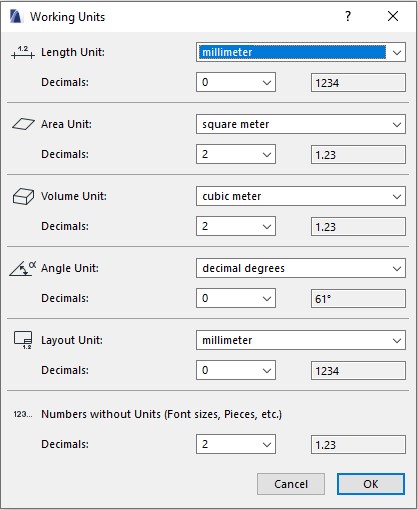
- QUICK OPTION: Located at the bottom of the screen, this bar lets you quickly adjust display settings such as Scale, Layer Set, Pen Set, and Units.
- PROJECT ORIGIN: At the center of the workspace, you’ll see an “X” mark. This is the coordinate origin (0,0,0), which serves as the reference point for your project.
Additionally, when you open a new file, you will see four default elevation markers at the center of the screen. These markers are not crucial and are usually adjusted later once the model is built. Personally, I often delete them and create new ones when needed.
To explore more details, see our guide: Getting Archicad Interface
Basic Shortcuts in Archicad
Here are some essential Archicad shortcuts you should know to work efficiently and save time.
Document Shortcuts
These are common shortcuts, similar to many other software.

Moving Objects Shortcuts
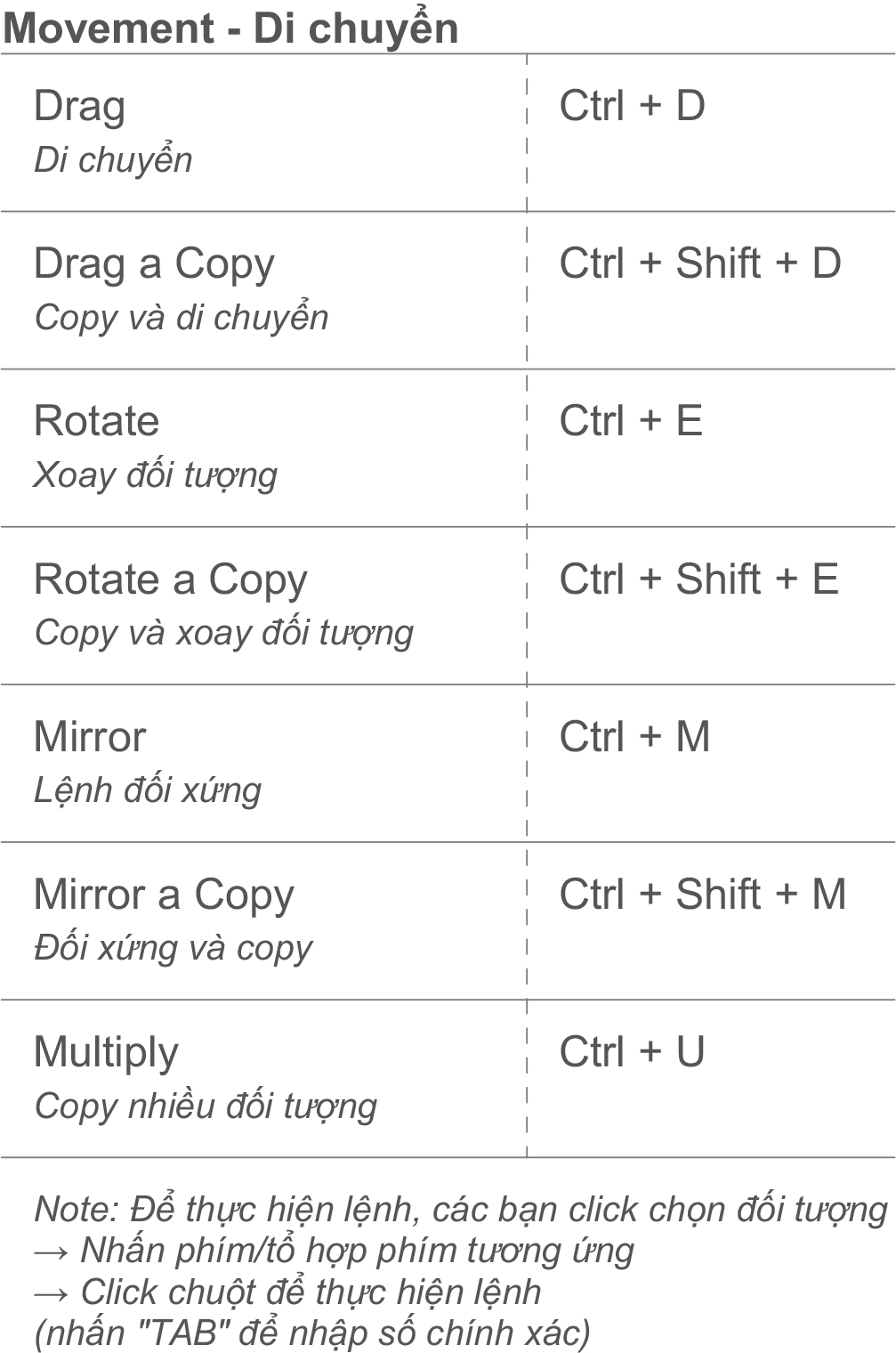
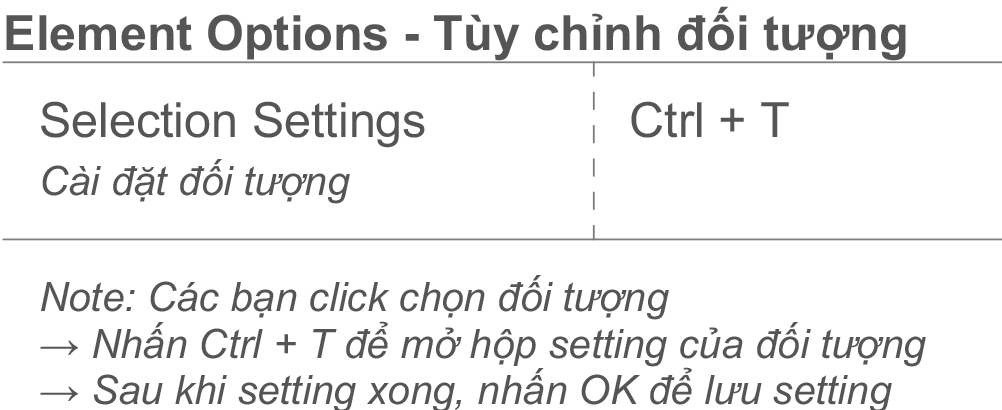
Element Options
- Select an element → Press Ctrl + T to open its settings dialog.
- Adjust the parameters → Click OK to apply.
View Related
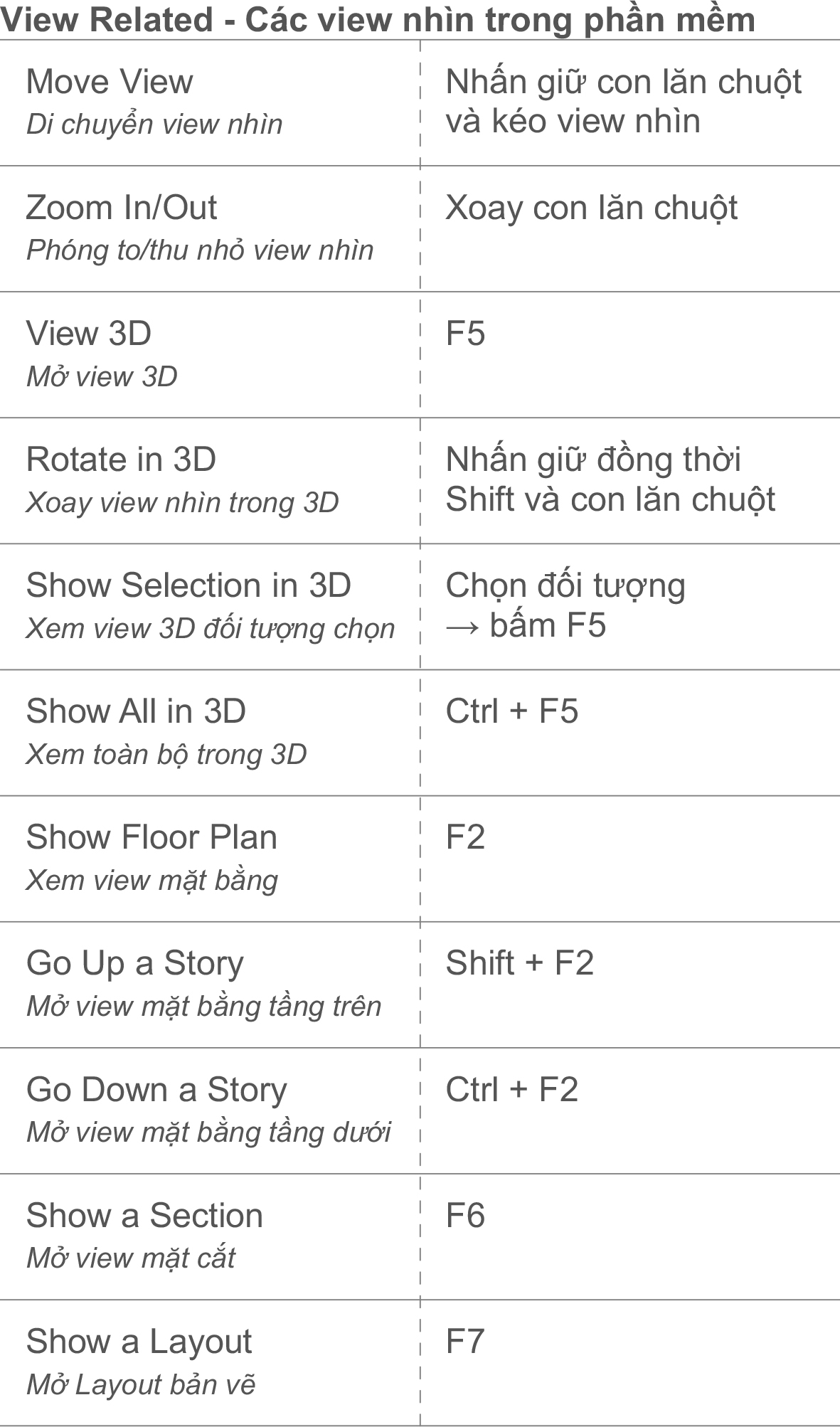
These are the default shortcuts in Archicad. If you find them inconvenient or are used to different key mappings from other software, you can fully customize the shortcuts to your preference.
To learn more about shortcuts and how to set up your own hotkeys, check out: Archicad Shortcuts
| See more: Basis Archicad shotcuts