When working with Archicad, setting the correct units from the beginning is very important.
In this article, I will guide you through how to change the working units in Archicad.
Working Units
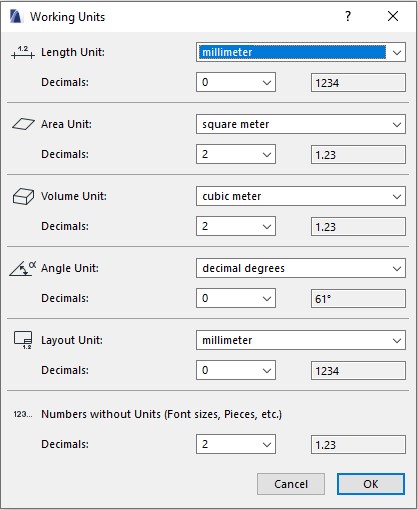
Open the Working Units dialog by going to Options > Project Preferences > Working Units.
Length Unit
Select the standard length unit. Archicad provides multiple options such as millimeters, centimeters, meters, feet, and more.
Note:
Changes made here do not affect the Dimension tool.
To change the unit used by dimensions, go to: Options > Project Preferences > Dimensions
Area Unit
Set the standard unit for area measurement, with options such as square meters, square centimeters, and others.
Volume Unit
Set the standard unit for volume measurement, with options such as cubic meters, cubic centimeters, and others.
Angle Unit
Set the standard unit for angle measurement.
Layout
Set the standard length unit related to layout editing features, such as layout spacing, placed 2D drawings, title sizes, and other layout-related elements.
Numbers without Units (Font sizes, Pieces, etc.)
Set the number of decimal places displayed for values without units, such as text sizes and similar parameters.
Note
In all unit settings, there is a Decimals option at the bottom.
This setting controls the number of decimal places displayed for each unit type.
On the right side, Archicad shows a preview example of how the values will be displayed.