Roof Tool – Create Roof Models in Archicad. The Roof Tool in Archicad allows you to create roof models — from simple single-plane roofs to complex multi-surface designs — with full control over geometry and structure.
Roof Tool Settings
Like other Archicad tools, open the Roof Settings panel to configure the parameters as needed.
Roof Geometry and Positioning Panel
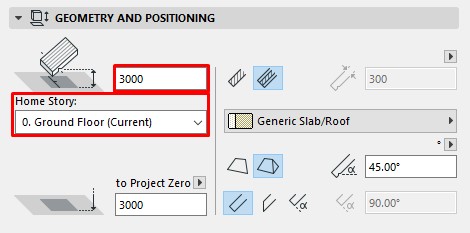
Pivot Offset: Enter the offset distance of the roof from the Home Story level.
Home Story: Select the level (story) where the roof model will be placed.
The roof is linked to the selected Home Story. Changing the Home Story’s level or reassigning it will automatically update the roof’s position.
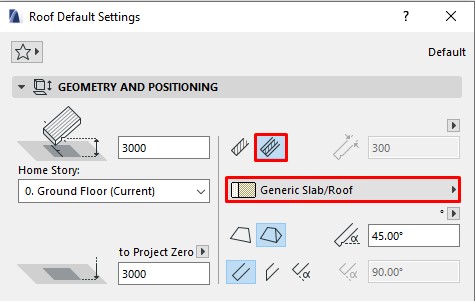
Roof Structure: Choose between a Basic Roof or a Composite Roof (similar to the Slab Tool).
- Basic Roof: Select the left icon, then set the material and roof thickness.

- Composite Roof: Select the right icon and choose the desired composite structure.
Note: In Composite mode, roof thickness cannot be edited directly — it is defined by the total thickness of the composite layers in
(Options > Element Attributes > Composites).

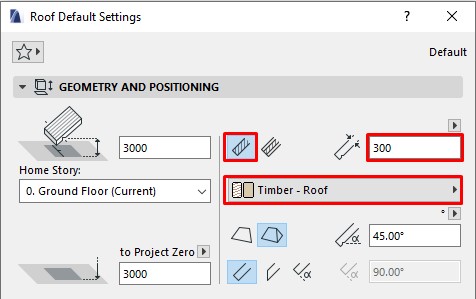
Roof Geometry Method: Choose to create either a Single Plane Roof or a Multi-plane Roof.
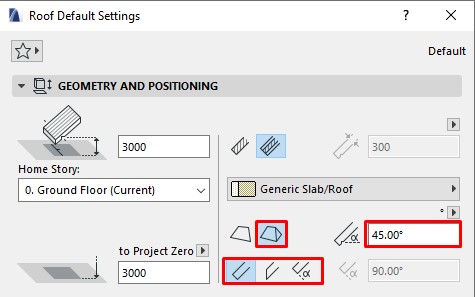
If you select Multi-plane, the Multi-plane Geometry Panel will be activated.
Roof Pitch: Enter the slope angle of the roof.
Edge Angle: Chọn góc vát của các cạnh mái.
Set the bevel angle of the roof edges.
There are three options:
Perpendicular to the roof plane
Perpendicular to the ground
Custom (enter your preferred angle in the right-hand field)
Roof Multi-plane Geometry Panel
This panel becomes active when using the Multi-plane mode.
Roof levels: You can add one or more roof levels here.
By default, only one level is available.
Click Add to create more roof levels (or Remove to delete).
- In the right panel, adjust the slope of each level in the Pitch column.
- Set each level’s elevation height in
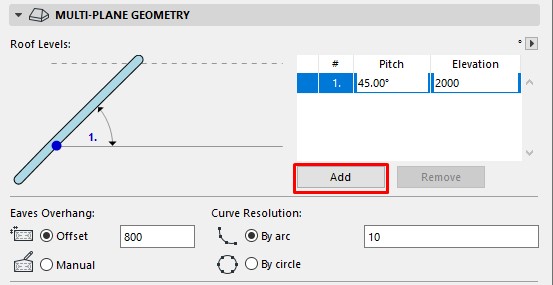
Eaves overhang:
- Offset: Enter the overhang distance from the roof’s reference line — this applies to the entire roof.
- Manual: Check this option if you wish to manually adjust each roof surface individually.
Roof Model Panel
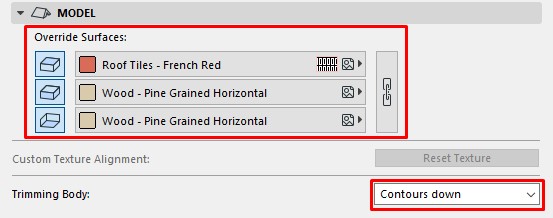
Override Surfaces: Like in the Slab Tool, you can set different materials for each surface or apply one material to the entire roof by clicking the chain icon.
Trimming body: Defines how the roof will trim other elements when using trimming operations.
(The trimming function will be explained in another tutorial.)
Create a Single-plane Roof Model
You can design various roof types — from basic to highly complex models.
In this Archicad Basics series, we’ll start with a simple single-plane roof. Advanced shapes will be covered in future lessons.
Steps to create a simple roof model:
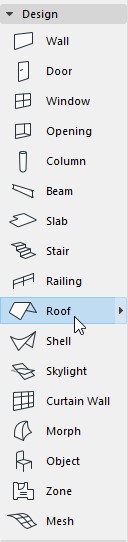
- Select the Roof Tool from the Toolbox.

- Open the Roof Settings and set the parameters as shown above.
- In the Info Box, under Geometry Method, select Single-plane and the rectangle drawing mode.

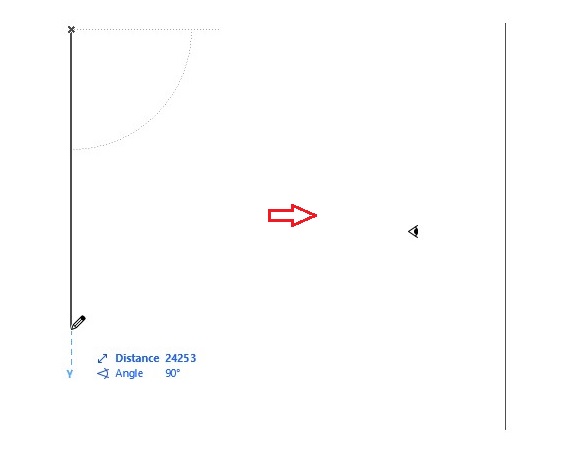
- In the Floor Plan view, click two points to define the Roof’s Pivot Line
- After defining the axis, a small eye icon will appear — click again to choose the roof’s sloping direction.

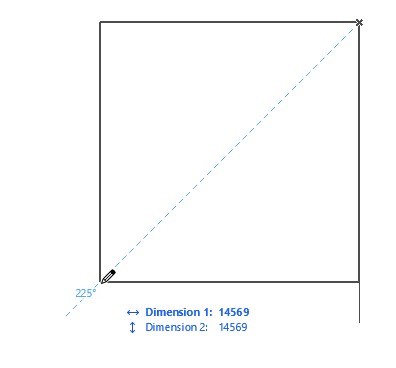
- Define the roof area by clicking the start and end points to form a rectangle (similar to drawing a slab area).

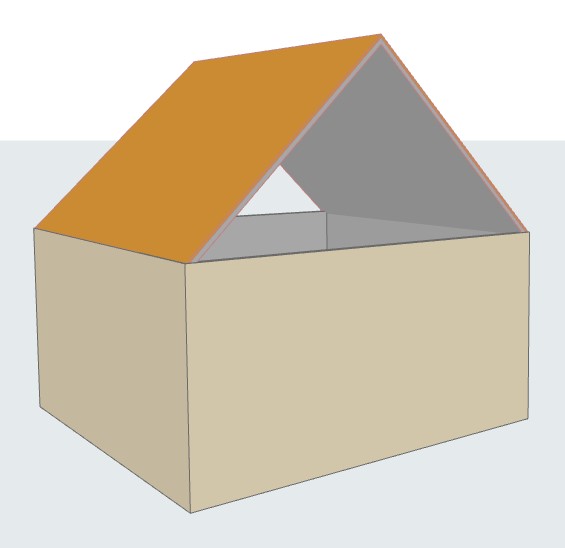
- To create the opposite side of the roof, repeat the process or use the Mirror command.