When working in Archicad, every second counts. If you rely only on manual menu clicks, you’ll waste time on repetitive steps. But with a few Archicad shortcuts, you can work twice as fast. Personally, I treat them like my “secret weapon” in daily design tasks—and you can too.
Let’s go through the most basic Archicad shortcuts that every beginner should master.
Basic Archicad Shortcuts
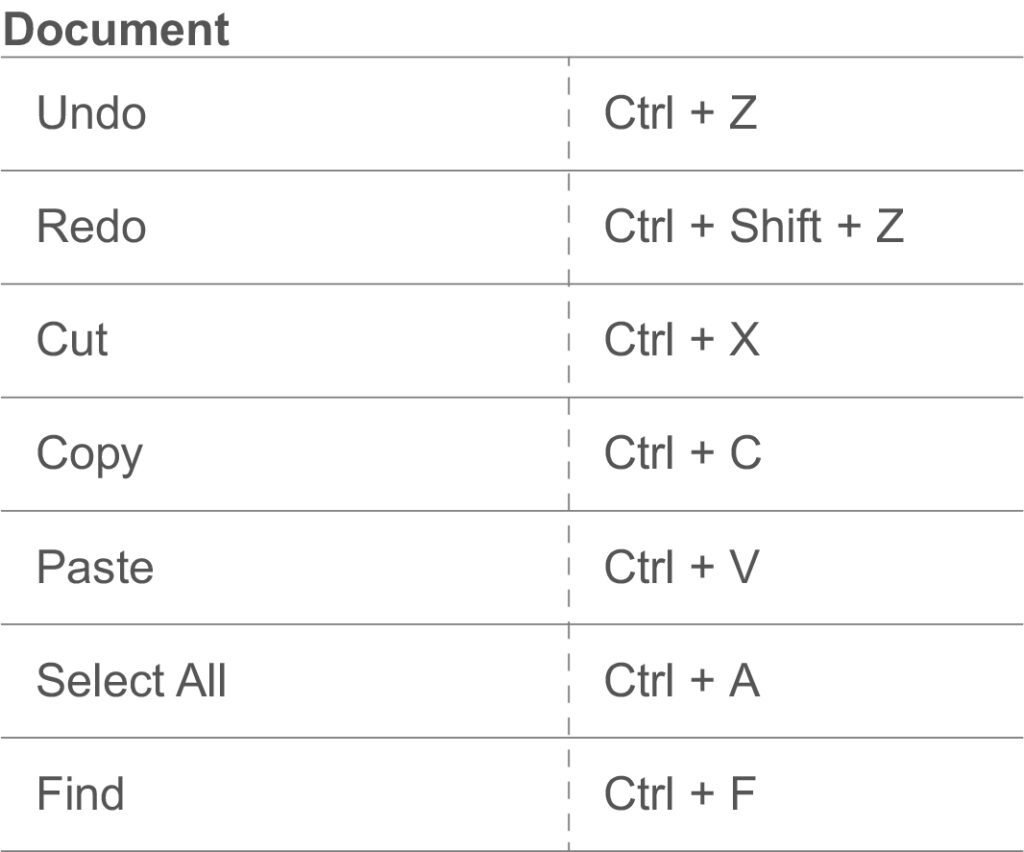
Document Shortcuts
These are the universal commands, just like in other software:
Copy: Ctrl + C
Cut: Ctrl + X
Undo: Ctrl + Z
Paste: Ctrl + V
Simple, but essential.
Movement shortcut
Working with objects is much faster with these:
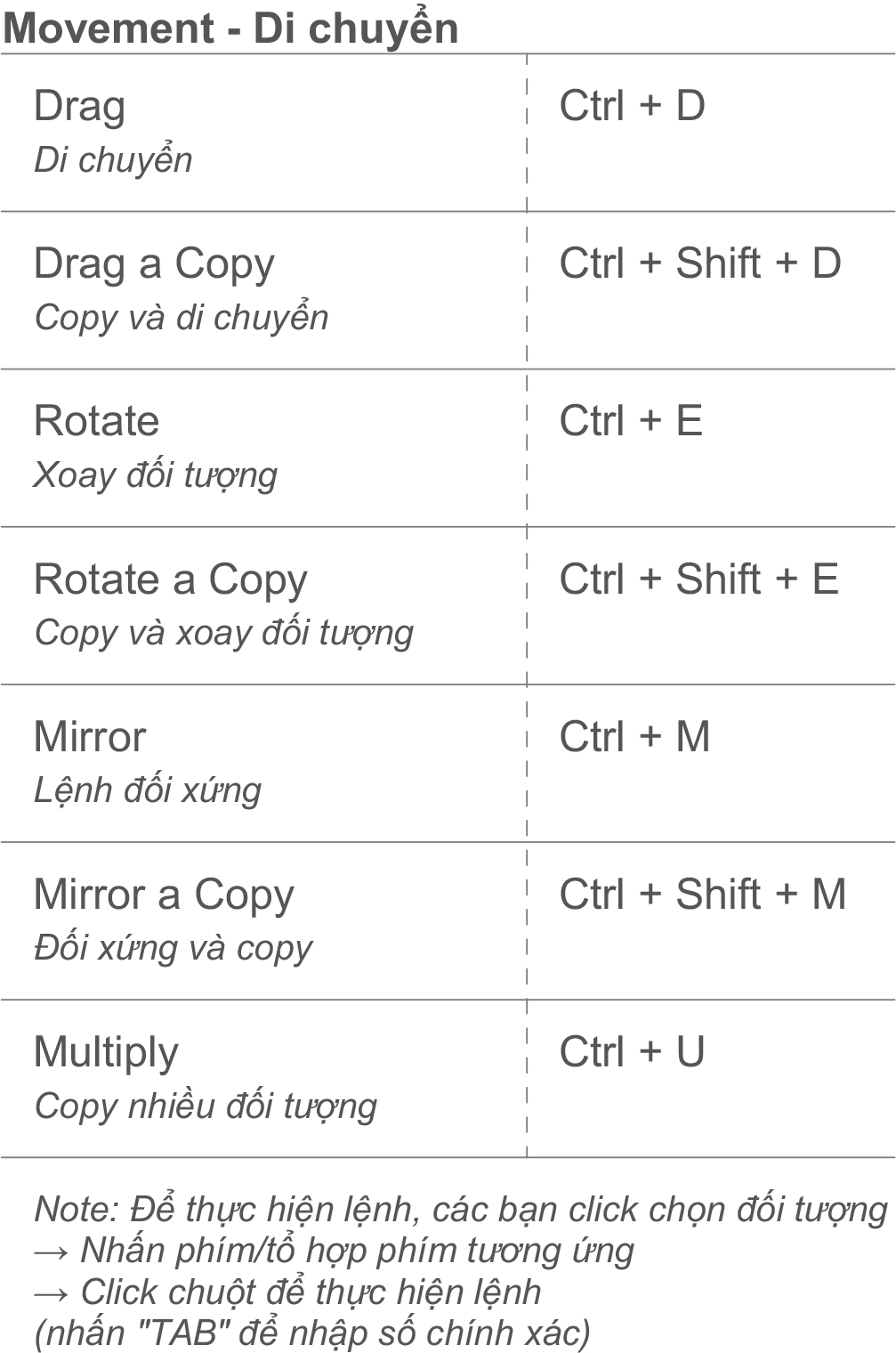
- Drag (Move): Ctrl + D
- Drag a Copy (Move + Copy): Ctrl + Shift + D
- Rotate: Ctrl + E
- Rotate a Copy: Ctrl + Shift + E
- Mirror: Ctrl + M
- Mirror a Copy: Ctrl + Shift + M
- Multiply (Copy multiple objects): Ctrl + U
*Tip: Select the object → press the shortcut → use TAB to enter precise distances or angles.
Element Options
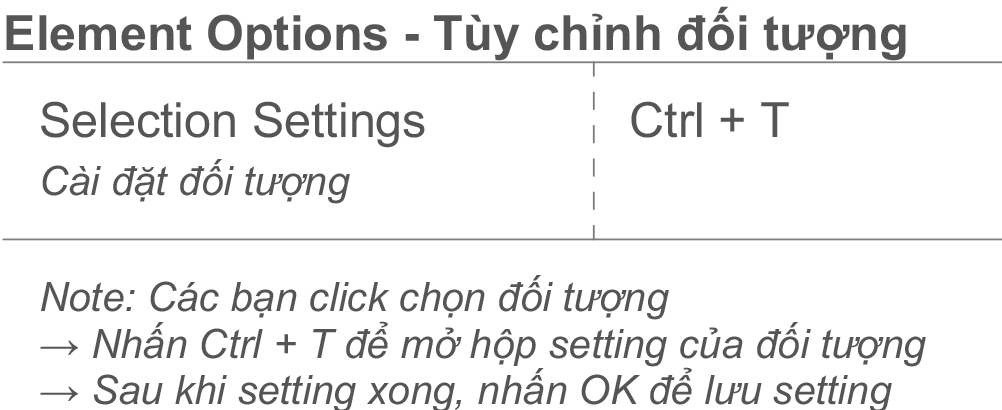
- Open Object Settings: Ctrl + T
Steps:
Select the object
Press Ctrl + T to open the settings dialog
Adjust parameters → click OK to apply
View Related
The views in Archicad after opening, will be displayed in the Tab Bar.
» Review article Lesson 4 – Getting Started With the Archicad Interface
Switching views quickly is one of the biggest time-savers:
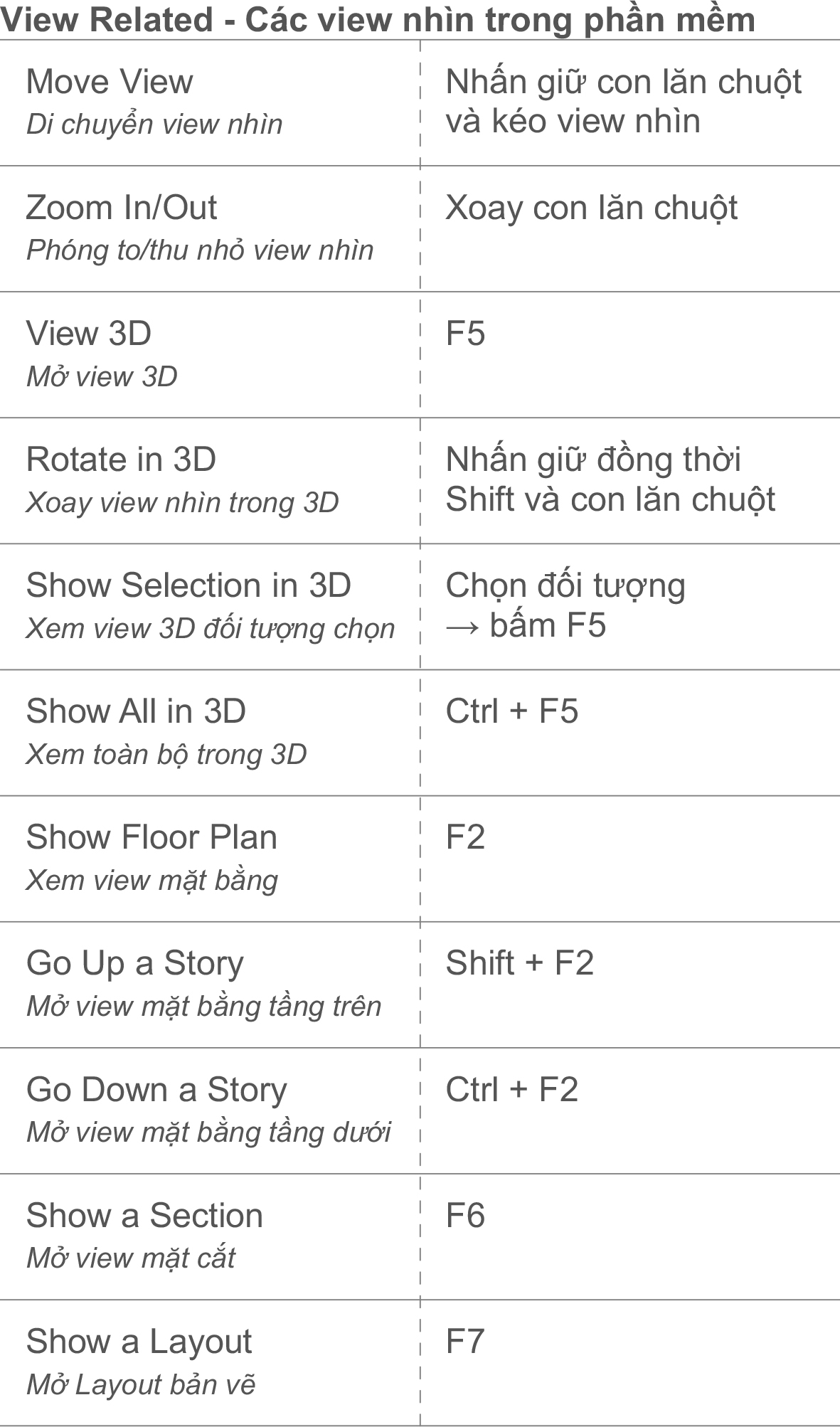
- Move View: Hold mouse wheel and drag
- Zoom In/Out: Scroll mouse wheel
- 3D View: F5
- Rotate in 3D: Hold Shift + Mouse wheel
- Show Selection in 3D: Select object → F5
- Show All in 3D: Ctrl + F5
- Floor Plan View: F2
- Go Up a Story: Shift + F2
- Go Down a Story: Ctrl + F2
- Show Section: F6
- Show Layout: F7
Customize Archicad Shortcuts
Above are the basic default Archicad shortcuts. In addition, Archicad also provides the ability to customize shortcuts according to personal habits, follow the steps below to personalize your shortcut table.
To change the shortcuts as desired, open the Work Environment panel by selecting
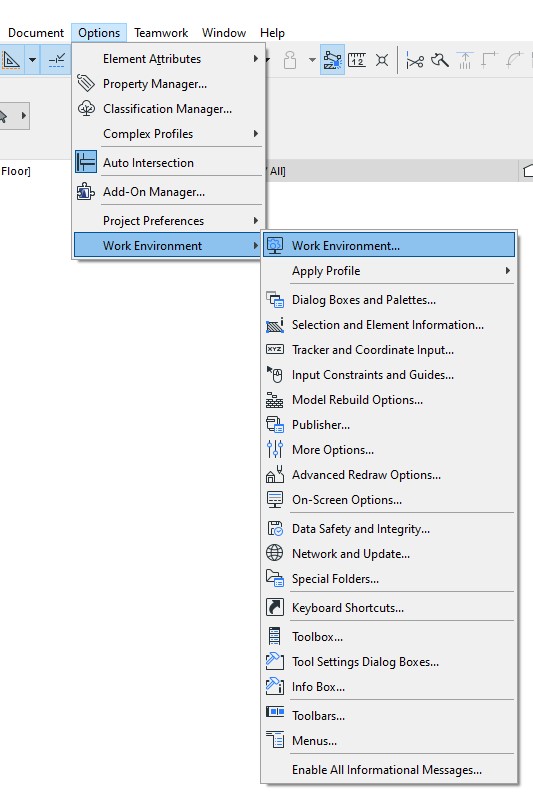
Or you can also open it quickly by right-clicking anywhere on the Toolbox panel and selecting Toolbox…
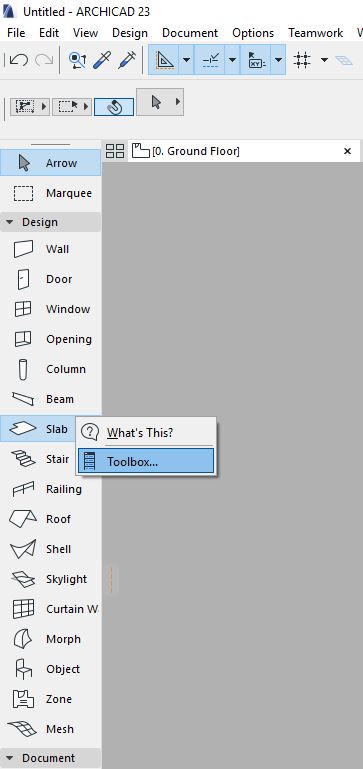
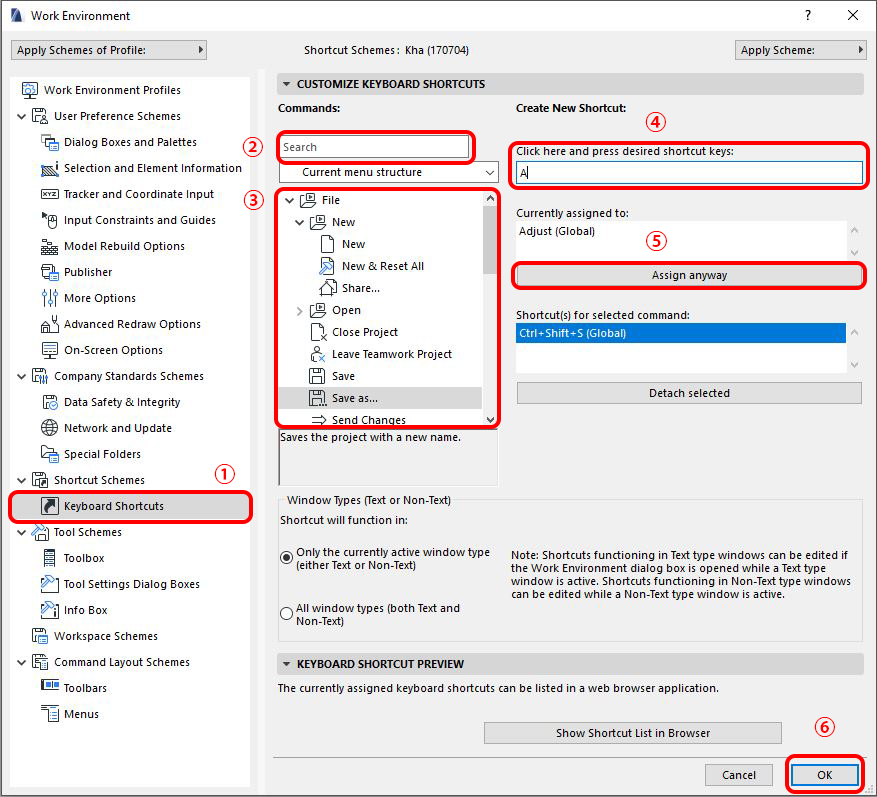
Default shortcuts are helpful, but Archicad also lets you create your own custom shortcuts:
Open Work Environment → Keyboard Shortcuts
Search for a command by name or menu category
Enter your desired shortcut
Check if it conflicts with another command (shown in Currently assigned to)
Click Assign anyway → OK to apply
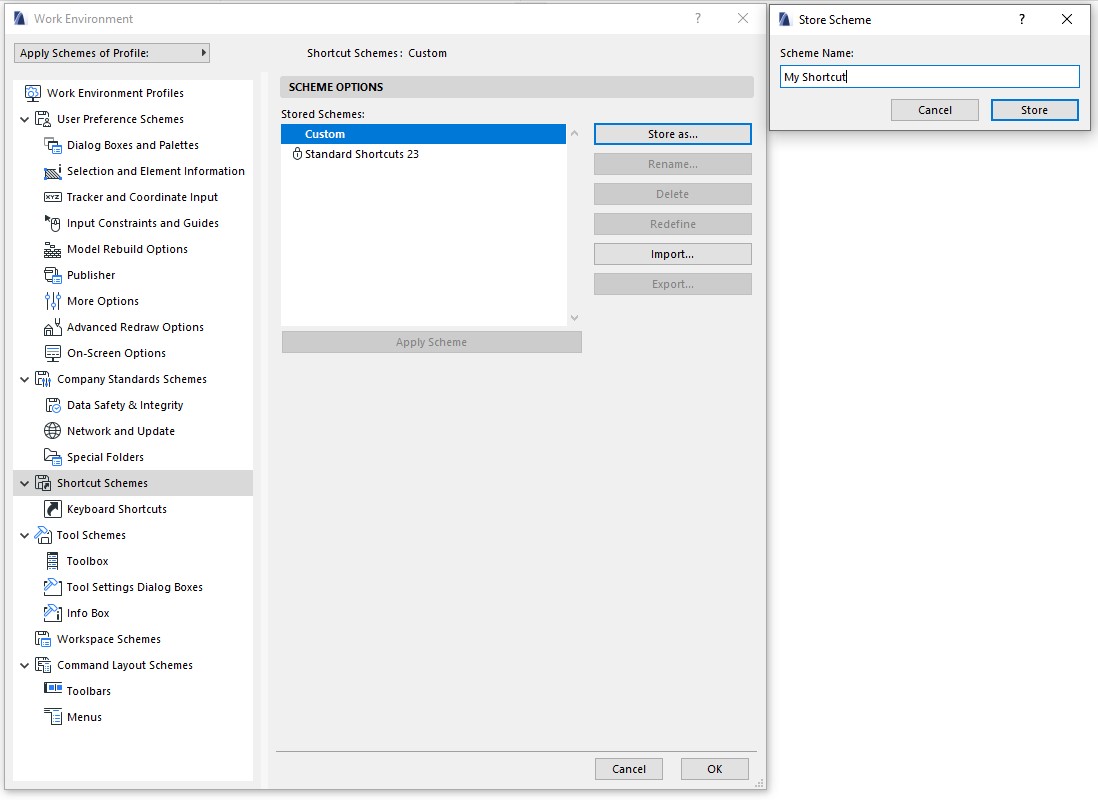
Save & Manage Shortcut Sets
Save your custom shortcuts: Shortcut Schemes → Store As…
Export/Import your set to use in other Archicad versions
Restore defaults anytime: select Standard Shortcuts [version]
Getting comfortable with Archicad shortcuts will speed up your work dramatically. Start with the basics above, then gradually personalize your own set that matches your workflow. Once shortcuts become second nature, you’ll feel like you’ve unlocked a whole new level of Archicad mastery.