Practice Archicad for Beginners – This series guides you through creating a simple building project in Archicad, showing how to use the software in the simplest and most accessible way. Designed for beginners, this series helps you get comfortable with Archicad in a short time. By following the lessons, you’ll see that using Archicad is actually easy and straightforward.
| See more: What is Archicad?
Practice Archicad for Beginners
In this series, we will cover the most basic operations in Archicad. By following the instructions, you’ll be able to create a simple building model on your own while learning key features of Archicad: presenting, documenting, and rendering your designs.
I will try to explain everything in the clearest way possible. If you have any questions along the way, feel free to leave a comment, and I’ll answer within my capacity.
In this article, we will use Archicad 23.
Course Content
Learn basic modeling methods and tools in Archicad
Build a simple 3D model
Add information to the model, such as text, dimensions, etc.
Create a site model
Apply and customize materials
Create construction documentation (floor plans, elevations, sections, etc.) and learn how to edit and present them
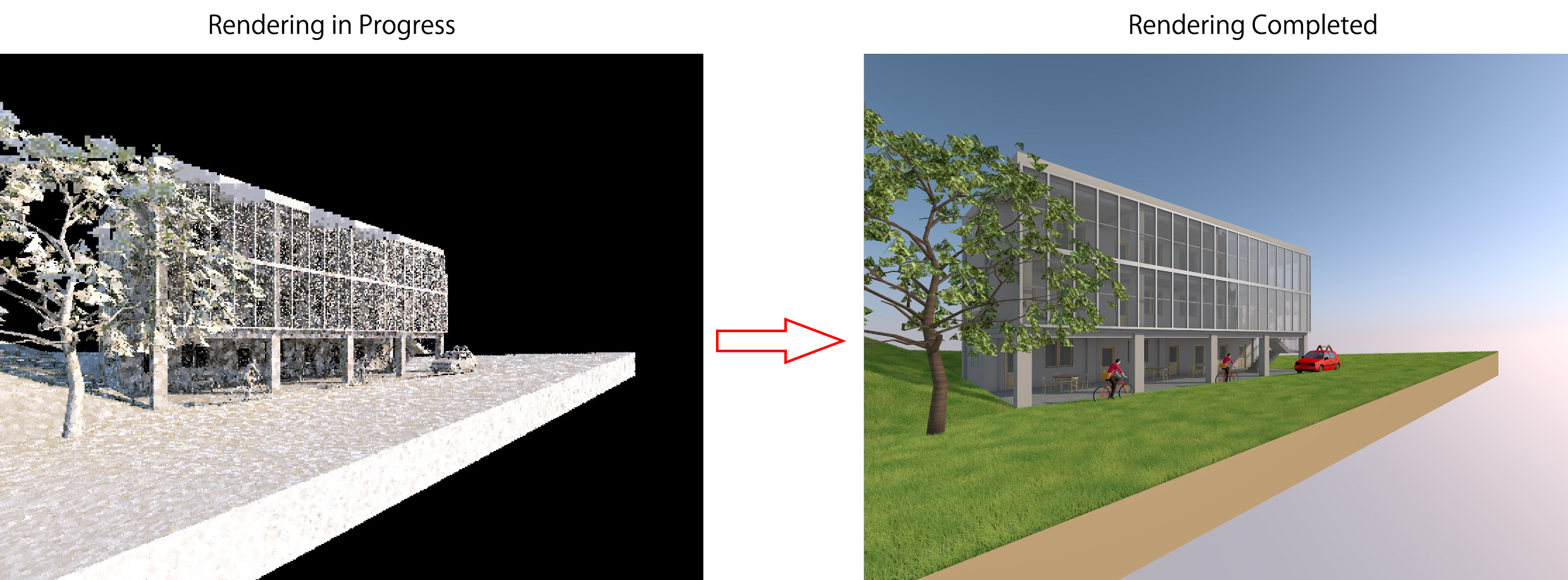
Render images
Let’s get started!
Getting Started with Archicad
After installing the software, the Archicad icon should appear on your Desktop. If not, check your installation folder.
For installation and a free Student License, you can refer to the guide: “How to Install Archicad and Get a Free Student License.”
First, double-click the Archicad icon to launch the program.
After starting, the “Start Archicad 23” window will appear with the following options:
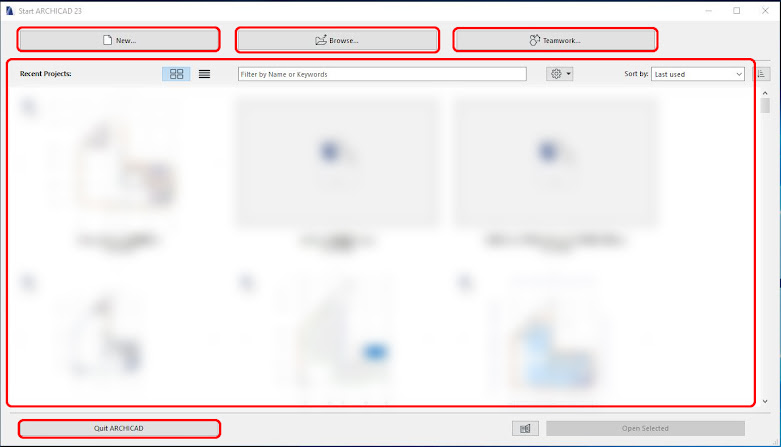
- New: create a new project
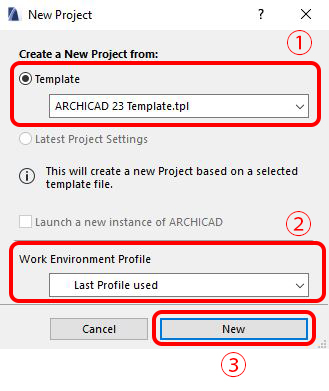
After clicking New, the “New Project” dialog appears:

① Template:Archicad templates.
– If you work for a company that requires a specific template, make sure to choose the correct one.
– Otherwise, you can leave the default Archicad template.② Work Environment Profile: defines your working environment settings in Archicad.
– Last Profile Used: the environment from your previous session
– Default Profile: default workspace settings
Beginners can usually just leave it as Last Profile Used.③Click New to create a new project.
- Browse: select Browse to open an existing Archicad file.
- Teamwork: select Teamwork to open a project on Bim Server/Bim Cloud.
Teamwork allows multiple users to work on the same project file.
To use Teamwork, you need a server to share the project and have Bim Server/Bim Cloud installed.We will cover Teamwork in a separate lesson. For now, beginners can skip it. - Recent Projects: shows the files you opened in previous sessions.
- Quick Archicad: exit Archicad.
| See more: What is BIM? Archicad application in BIM