Introduction to Archicad
Archicad is a professional BIM (Building Information Modeling) software used by architects, engineers and design consultants.
Its biggest advantage is the ability to work with both 2D drawings and 3D models in a single platform, which helps users manage project information effectively and reduce errors during the design process.
Unlike traditional CAD software that mainly focuses on floor plans or 3D views, Archicad provides a full range of design, modeling and documentation tools according to modern BIM standards.
For that reason, it is widely used in architectural and construction companies in Vietnam and around the world.
In this post, I’ll show you how to download and install the latest version of Archicad directly from the Graphisoft website. The guide includes step-by-step instructions and screenshots, and is suitable for beginners as well as users coming from other design tools, such as AutoCAD or Revit.
Step 1 – Visit the Graphisoft Website
- Go to: https://graphisoft.com
Log in to your Graphisoft account.
(If you don’t have one yet, you can easily register a free account.)
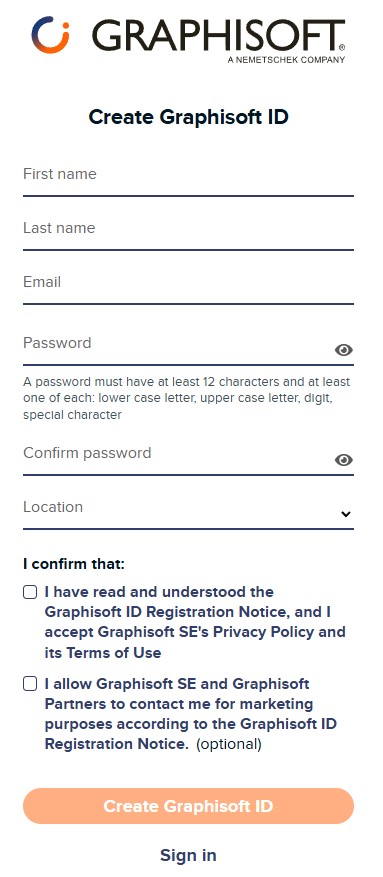
Register a free account
Step 2 – Go to the Download Page
On the top menu, click: LEARN & SUPPORT → Downloads

On the Downloads page, choose the version you want to download.
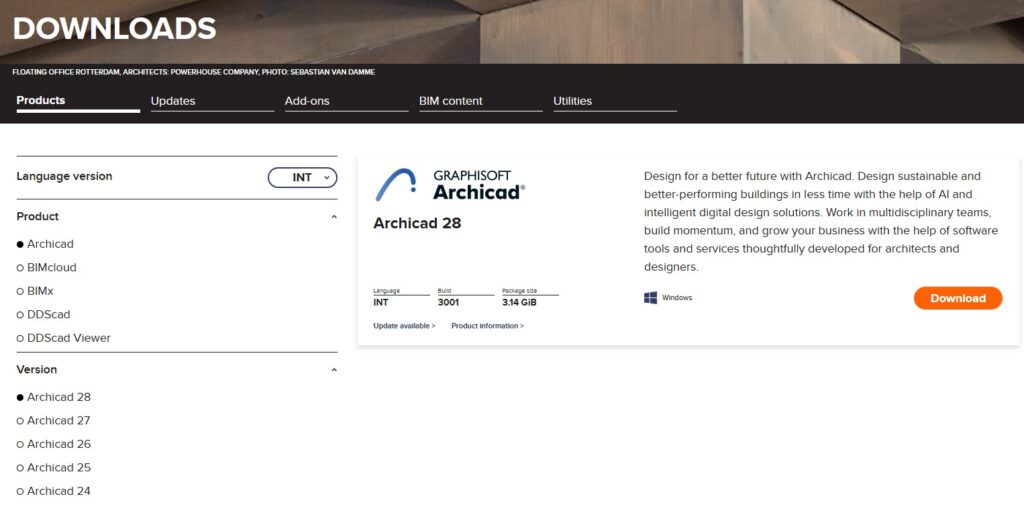
Choose the version you want to download
- Language version: Select the language (use INT for English version)
- Product: Choose Archicad
- Version: Select the version you want to install (always use the latest version)
- Platform: Windows or macOS
Step 3 – Install Archicad
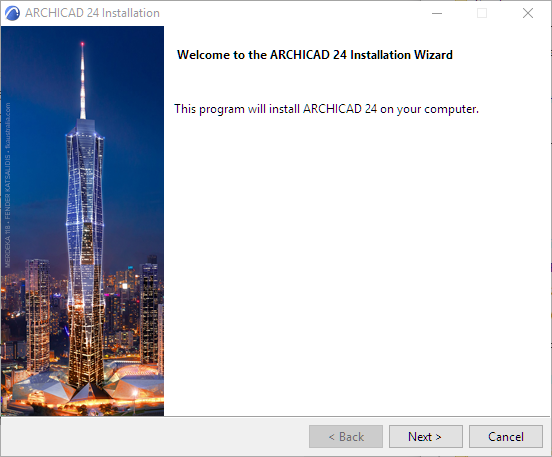
1. Run the installer file you downloaded
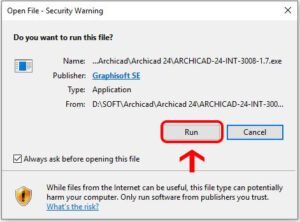
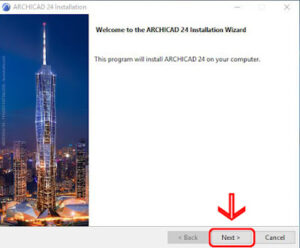
2. Click Next
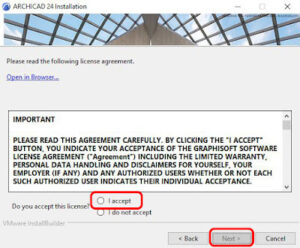
3. Accept the license agreement → Next
4. Choose the installation location (C drive is recommended) → Next
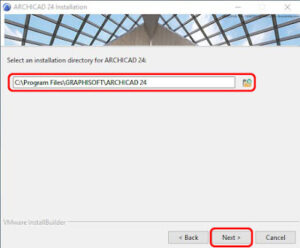
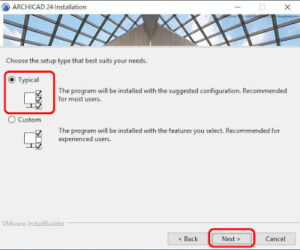
5. Click Install and wait for the installation to complete
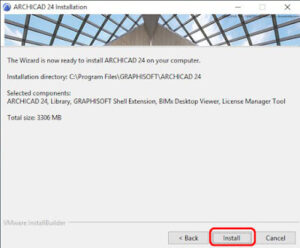
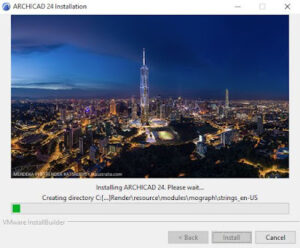
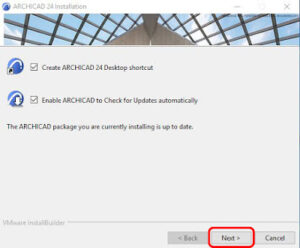
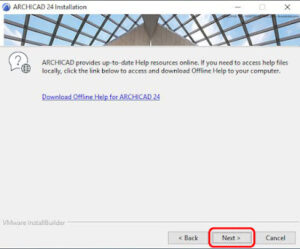
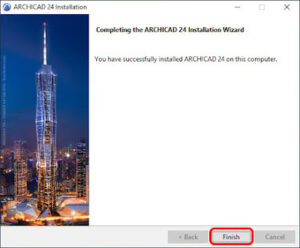
You may need to restart your computer to complete the installation.
Tips During Installation
Always download Archicad from the official Graphisoft website to avoid virus or corrupted files
Make sure your computer meets the system requirements of the version you install
If you receive an error during installation, double-check that your download file is not damaged
With just a few simple steps, you can easily download and install the latest version of Archicad directly from Graphisoft.
Using the official installer ensures better stability and protects your system from unnecessary risks — this is the first and most important step of your Archicad learning journey.
In the next lessons, we’ll walk through the interface, learn the core tools and build your first Archicad model.