The Section Tool and Elevation Tool in Archicad are essential for creating section and elevation views of your building model.
In this lesson, you’ll learn the basic settings and how to generate section and elevation views easily.
Section và Elevation Settings
The Section Tool and Elevation Tool share nearly identical settings, so this guide covers both in one place.
To open the settings dialog, select the Section Tool or Elevation Tool from the Toolbox and press Ctrl + T.
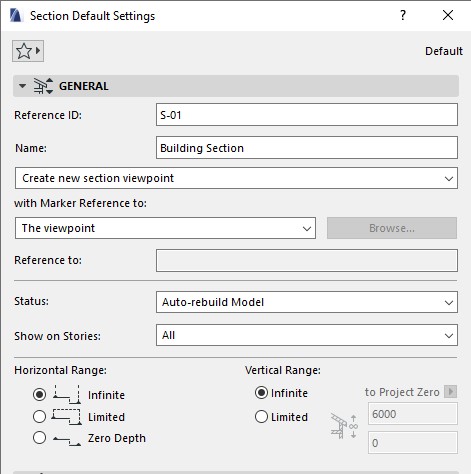
General Panel
Reference ID: Automatically generated, but you can edit it manually.
Name: The name displayed in the Navigator and on the Floor Plan.
Show on Stories: Choose which story level will display the section/elevation marker.
Horizontal Range: Defines the visible depth range of your section or elevation.
- Infinite: Displays the entire model.
- Limited: Restricts the visible range. After selecting this, a dashed boundary will appear on the floor plan — adjust as needed.
- Zero Depth (Section only): Displays only the model at the cut line, without background depth.
Vertical Range: Sets the visible height range of the section/elevation.
- Infinite: Shows all model elements vertically.
- Limited: Restricts vertical visibility — configure the height limit in the right-hand settings panel.
Marker Panel
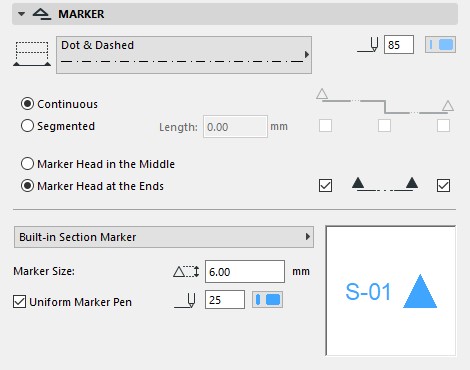
This panel controls how the section/elevation markers and lines appear on the floor plan.
Section Line Settings (Section Tool only): Choose the line type and pen color for the section line and ID text.
〉 Note: Only the main section line appears on the floor plan. Dashed boundary lines (for Limited mode) are visible in the working view but not in printed drawings.
- Continuous: Displays the entire section line.
- Segmented: Choose specific portions to display.
- Marker Head in the Middle / at the End: Choose where the marker heads appear (center or both ends).
Marker Text Style
Set the text properties (font, size, pen color, etc.) for the marker name displayed on the floor plan.
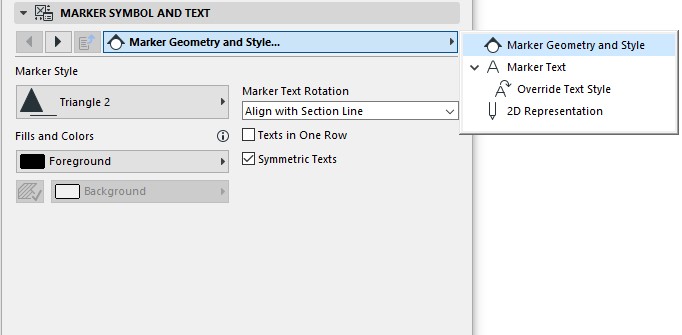
Marker Symbol and Text
Configure the appearance of the section/elevation marker symbol and text.
The options depend on the selected marker type from the library.
Preview the changes in the top preview window.
Story Levels Panel
This panel controls how story level lines and markers appear in section/elevation views.
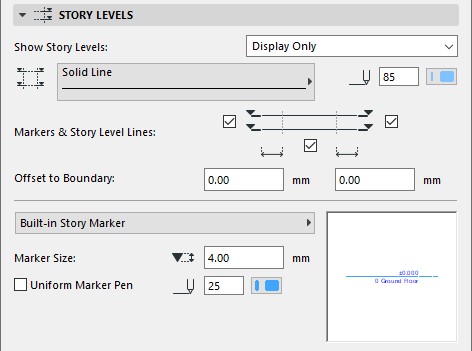
Show Story Levels
- Display only: Levels appear in the working view only.
- Display and Output: Levels appear in both the working view and printed drawings.
- None: Hide story level lines.
Below this, set the line type and pen color for level lines.
Markers & Story Level Lines: Choose to display markers on the left, right, or center.
Offset to Boundary: Set the distance between the marker and the view limit.
Select Marker Type: Choose the level marker symbol and adjust its size and pen color.
View the live preview on the right.
Story Level Text Style
Adjust text-related parameters (font, color, size) for story level labels.
Story Levels Symbol and Text
Set the visual style of story level markers and their text appearance.
Grid Tool Panel
This section defines how Grid Elements (reference axes) are displayed in section and elevation views.
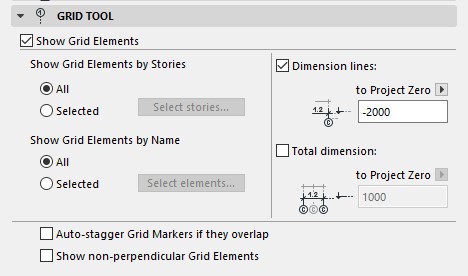
Show Grid Element: Tick this box to enable grid display.
Once enabled, the settings below become active.
The panel is divided into two columns:
Left Column – Grid Display Settings
Show Grid Element by Stories
- All: Show gridlines from all stories.
- Selected: Click Select Stories… to choose which stories’ gridlines to display.
Show Grid Elements by Name
- All: Show all gridlines.
- Selected: Click Select Elements… to choose specific grids by name.
Right Column – Dimension Line Settings
Control automatic dimension lines for grids:
Total Dimensions: Displays total dimension lines.
Dimension Lines: Displays grid-by-grid dimension lines.
Tick the options you want, and specify each line’s placement below.
Additional options:
- Auto-stagger Grid Markers if they overlap: Automatically arranges markers and story levels to prevent overlap.
- Show non-perpendicular Grid Elements: Displays gridlines that aren’t perpendicular to the section/elevation plane.
How to Create a Section or Elevation
Follow these steps to create a new section or elevation view:
- Select the Section Tool or Elevation Tool from the Toolbox.
- Open the Settings dialog and adjust parameters as explained above.
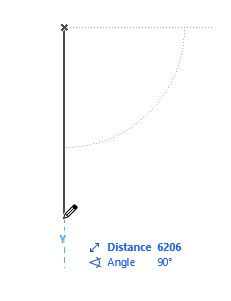
- Click two points on the floor plan to define the section/elevation line.
(Hold Shift to constrain it horizontally or vertically.)

- Click again to set the viewing direction.

If using Limited mode, adjust the visible range by dragging the dashed boundary lines.

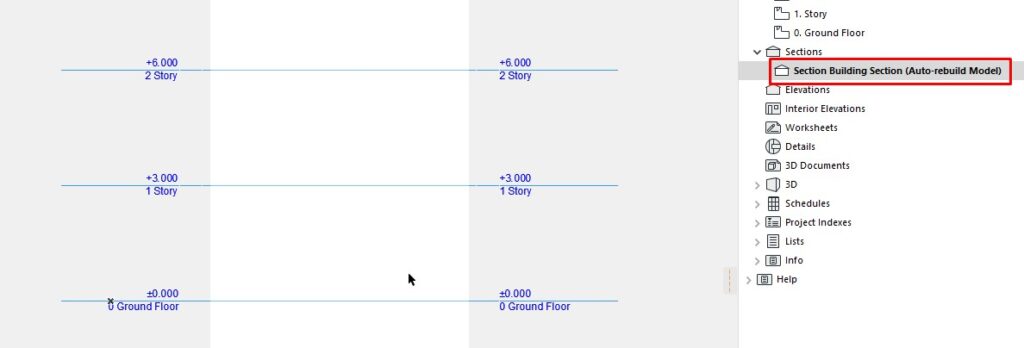
- Once created, the new section or elevation view will appear in the Navigator.
Double-click it to open and view your generated section or elevation.

« Previous Lesson Next Lesson »