DIMENSION
The Dimension tool is extremely useful for automatically measuring distances, lengths, and angles.
In the section view created in the previous lesson, select the Dimension tool from the Toolbox.

How to place Dimensions
Click on each Slab.
The Dimension tool will automatically add two circular points to each slab.Double-click on any empty area to place the dimension line
(or right-click and choose OK).Click on the position where you want to place the dimension line to finish the command.

Click on the slab you want to dimension → Right-click and choose OK

Click on the position where you want to place the dimension

Result
Try moving the slab, and you will see that the dimensions automatically update according to the slab’s position.
After placing dimensions, you can freely move and edit them as needed.
Basic Dimension settings
① Select the Pen color for the dimension witness lines
② Text Style: In this setting, you can customize the font, text size, and pen color of the dimension text

TEXT
Select the Text tool from the Toolbox.

How to place Text
Double-click on any empty area in the working view
→ A dialog box will appear for entering text content.Enter the text
→ Click once more on any empty area to finish the command.
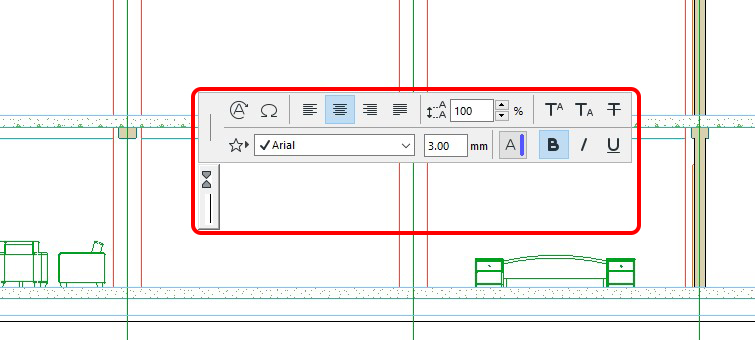
Double-click on any empty area to enter text
Editing Text after placement
After placing the text, you can modify:
Text size
Font
Pen color
Other text settings

After entering the content, click once more on any empty area to finish the command
Basic Text settings

Text Style
Set parameters related to font, size, alignment, and text style
(similar to a word processor).Text Block Formatting
Anchor Point: Set the anchor point of the text
Fixed Angle: Enter the rotation angle of the text
Always Readable: Enable this option if you want the text to always rotate to a readable orientation
Wrap Text: Enable this option if you want the text boundary to automatically adjust to the text content
Opaque: Set a background for the text
Frame: Add a border around the text